







Introduction
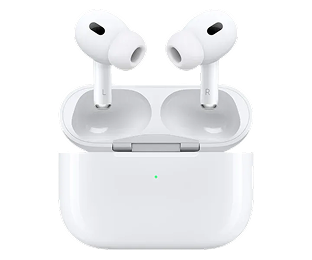
Lost an AirPod? It happens to almost everyone. You search everywhere, but the small earbud is nowhere to be found. Your first thought? Buy a whole new set for €180 or more. But there's no need for that. At Swappod, you simply buy the single earbud you're missing, refurbished, tested, and ready for use.
But then comes the next question: how do you pair that new earbud with your existing case and devices? And what do you do if pairing doesn't work at all? In this article, you'll find the most complete guide to pairing AirPods on the internet. From iPhone to Android, from Mac to Windows, and especially for anyone who has purchased a single replacement earbud.
1. Which AirPods model do I have?
Before you start pairing, it's important to know which model you have, as the steps can vary by model. You can find your model on the inside of your case lid, or via Settings → Bluetooth → (i) next to your AirPods on your iPhone.
Swappod sells individual earbuds for the following models: AirPods 1st, 2nd, and 3rd generation, and AirPods Pro 1st and 2nd generation. Important to know: AirPods Pro 1 and AirPods Pro 2 are not interchangeable. If you buy a single earbud from Swappod, always check that the model matches your existing earbud.
Are you missing an AirPod? You don't need to buy a complete new set. Check out our range of refurbished single AirPods at Swappod.nl and order the earbud you need today.
2. Pairing AirPods with iPhone or iPad
This is the easiest way to pair AirPods. Follow these steps:
Make sure Bluetooth is enabled on your iPhone or iPad. Go to the home screen. Place your AirPods in the case and open the lid. Hold the case next to your iPhone. A pairing animation will automatically appear on your screen — tap Connect and follow the instructions.
Don't see an animation? Then go to Settings → Bluetooth. Open the case, press and hold the setup button on the back of the case until the status light flashes white, and select your AirPods from the list.
Once your AirPods are paired with your iPhone via the same Apple Account, they will automatically connect to all your other Apple devices such as your iPad, Mac, and Apple Watch.

3. Pairing AirPods with Mac
On your Mac, go to System Settings → Bluetooth. Make sure Bluetooth is enabled. Open the case with your AirPods inside and hold it next to your Mac. Press and hold the setup button on the back of the case for about 5 seconds until the status light flashes white. Then select your AirPods from the Bluetooth list on your Mac.
Are you using the same Apple Account on your Mac as on your iPhone? Then your AirPods will automatically appear in the Bluetooth menu without needing to pair them again.
4. Pairing AirPods with Android
AirPods also work fine with Android, although you'll miss features like Siri and automatic device switching. Follow these steps:
On your Android phone, go to Settings → Connections → Bluetooth and turn on Bluetooth. Tap Pair new device. Place your AirPods in the case and open the lid. Press and hold the setup button on the back until the light flashes white. Select your AirPods from the list of available devices and follow the instructions.
5. Pairing AirPods with Windows
Click the Start button and go to Settings → Bluetooth & devices. Turn on Bluetooth and click Add device. Choose Bluetooth. Place your AirPods in the case, open the lid, and press and hold the setup button on the back until the light flashes white. Select your AirPods from the list and click Connect.
6. Pairing a single replacement earbud — especially for Swappod customers
This is the part most people struggle with and where there is hardly any good information available. You've ordered a single refurbished earbud from Swappod. How do you make sure this new earbud works with your existing case and devices?
Follow these steps carefully:
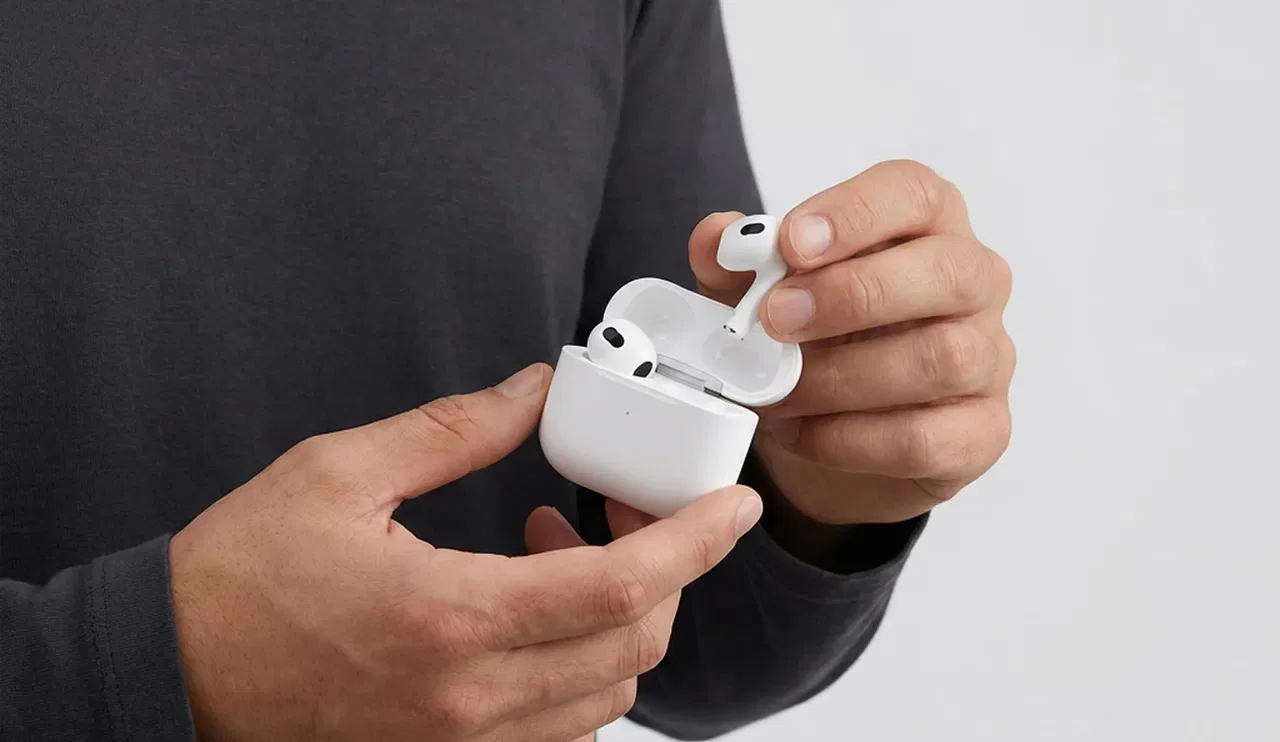
First, place both earbuds, the old and the new, in the charging case. Close the lid and charge the case for at least 20 to 30 minutes. This ensures that both earbuds have enough battery for pairing. Then remove your AirPods from your device's Bluetooth settings. On iPhone: Settings → Bluetooth → tap the (i) icon next to your AirPods → Forget this device. On Mac: System Settings → Bluetooth → click the cross next to your AirPods.
Then open the lid of the case with both earbuds inside. Hold the case next to your iPhone or iPad. Press and hold the setup button on the back of the case until the light flashes white. Follow the pairing animation on your screen and tap Connect.
Then check if both earbuds are recognized by going to Settings → Bluetooth → (i) next to your AirPods. Here you will see the battery status of each earbud separately.
Note: always make sure the replacement earbud is the same model as your existing earbud. AirPods Pro 1 and AirPods Pro 2 are not interchangeable.
Step-by-step plan — pairing a single replacement earbud
- Both earbuds in the case — Place both the old and new earbud in the charging case
- Charge — Charge case for 20-30 minutes so both earbuds are fully charged
- Forget device — Settings → Bluetooth → (i) → Forget This Device
- Activate pairing mode — Press and hold the setup button until the light flashes white
- Connect — Follow pairing animation and tap Connect
- Check — Check battery of both earbuds via Bluetooth → (i)

7. Meaning of the status light
The status light on your AirPods case tells you exactly what's happening. Flashing white means the AirPods are ready to pair. Green means the AirPods or case are fully charged. Orange means the AirPods or case are charging or have less than one full charge left. Flashing orange means an error has occurred; this is the signal to reset.
Meaning of the status light
| Light | Meaning | What should you do? |
|---|---|---|
| ⚪ Flashing white | Ready to pair | Open your Bluetooth settings and pair your AirPods |
| 🟢 Green | Fully charged | Nothing — your AirPods or case are ready for use |
| 🟠 Orange | Charging | Wait until the light turns green |
| 🟠 Flashing orange | Error occurred | Reset your AirPods using the setup button on the back of the case |
| ⚪ White (after reset) | Successfully reset | Pair your AirPods with your device again |
8. Troubleshooting — what if it doesn't work?
Your AirPods are not found. Check if Bluetooth is enabled. Put the AirPods back in the case, close the lid for 15 seconds, and then open it again. Make sure you don't have too many other Bluetooth devices nearby.
Your AirPods connect but keep disconnecting. Update your iPhone or iPad to the latest version of iOS or iPadOS. Check if the battery of both the earbuds and the case is sufficiently charged. Forget the device and pair again.
The status light keeps flashing orange. Reset your AirPods by closing the case, waiting 30 seconds, then pressing and holding the setup button for 15 seconds until the light first flashes orange and then white.
One earbud isn't working. Make sure the earbud is properly seated in the case and fully charged. Then reset the AirPods as described above and pair again.
9. Tips for refurbished AirPods
Refurbished AirPods like those from Swappod are tested, cleaned, and certified. However, there are a few things to keep in mind. After receiving them, always check the battery status via Settings → Bluetooth → (i) next to your AirPods. Make sure to fully charge the AirPods before pairing them for the first time. Update the firmware by placing the AirPods in the case, connecting the case to power, and keeping them connected to your iPhone. The firmware will update automatically. Always keep the case safe, as the case is essential for the pairing process and the battery life of the earbuds.
Conclusion
Pairing AirPods is easier than most people think. Whether you're switching to another device or have purchased a single replacement earbud from Swappod, with the right steps, you'll be ready in a minute. Do you need an earbud? Swappod provides single refurbished AirPods that are tested and ready for use, so you don't have to unnecessarily buy a whole new set.
After reading this guide, do you still need an earbud? Check out our range of refurbished single AirPods at Swappod.nl
Tags
Blog posts



TrustScore 4.9 | 235+ reviews
Contact
Do you have questions or need advice? Please feel free to contact us.
We are available on business days between 10:00 - 17:00
Call us: +31 85 0043 960
Email us: service@swappod.com
© Copyright Swappod 2026






Apple, AirPods, and AirPods Pro are trademarks of Apple Inc. Swappod is an independent seller and not affiliated with Apple Inc.
Shopping cart

Your shopping cart is empty


