

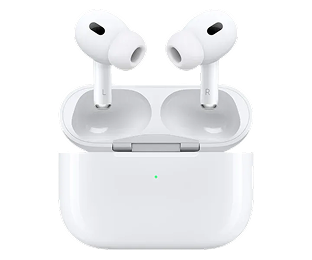


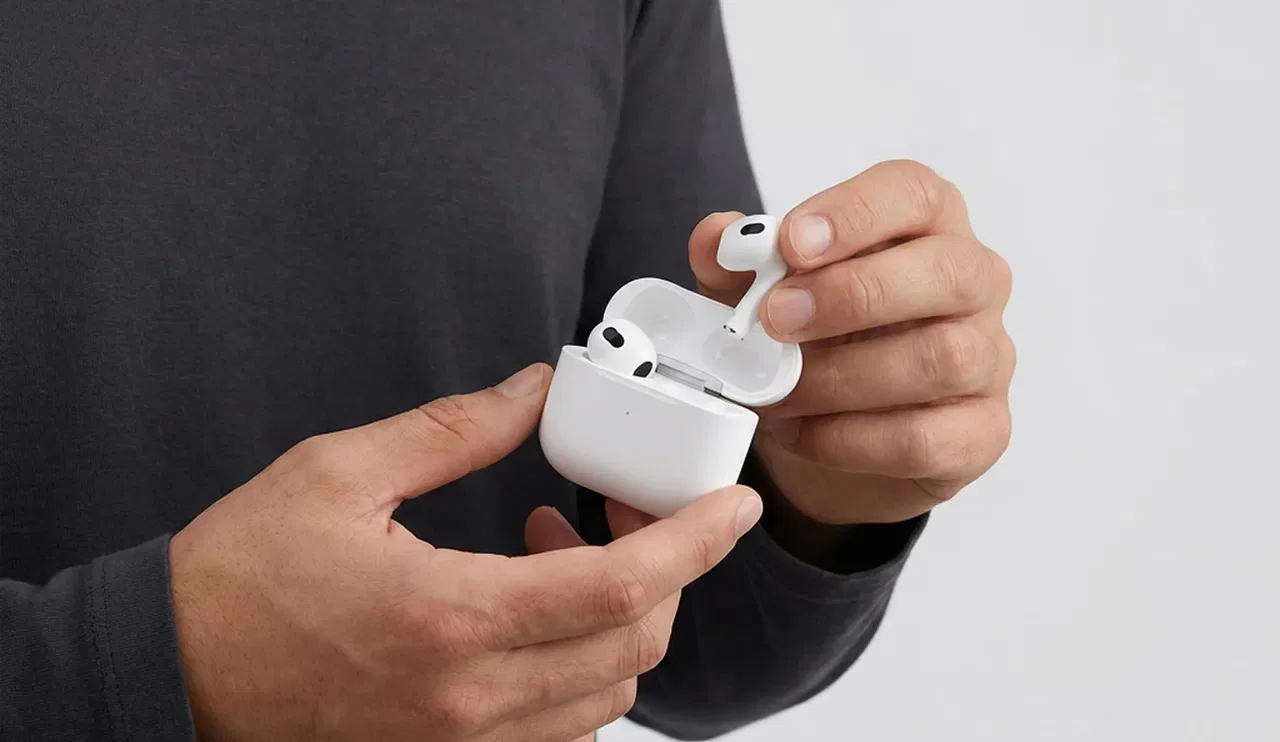



Sometimes you need to reset your AirPods if they are not charging properly or if another issue occurs. This works for AirPods 1, 2, 3, AirPods Pro 1, and AirPods Pro 2.
You should also follow these steps if you bought a new single AirPod, so both earbuds work together again.
How to reset and reconnect your AirPods
- Place both AirPods (including the new single earbud) in the same charging case.
- Close the lid and wait 30 seconds.
- Take an iPhone or iPad that is paired with your AirPods and go to Settings > Bluetooth.
- If you see your AirPods under "My Devices," tap the “i” icon, choose “Forget This Device,” and confirm.
- If they do not appear, continue to the next step.
- Open the lid of the charging case.
- Press and hold the button on the back of the case for about 15 seconds.
- The status light should blink orange first and then white.
Then follow the steps on your iPhone or iPad to reconnect your AirPods.
If the status light doesn’t flash white when you reset your AirPods
- Place your AirPods in the charging case and close the lid for 20 seconds.
- Open the lid of the case.
- Follow the instructions for your AirPods model:
AirPods 1, 2, 3, AirPods Pro 1, and AirPods Pro 2:
- Press and hold the button on the back of the case again for about 15 seconds.
- Wait until the status light flashes amber and then white.
AirPods 4 and AirPods Pro 3
- Double-tap the front of the case while the status light is on.
- When the status light flashes white, double-tap again.
- If the light begins flashing faster, double-tap a third time until it flashes amber and then white.
Reconnect your AirPods
- Keep your AirPods in the open charging case.
- Hold the case close to your iPhone or iPad.
- Follow the steps that appear on the screen.
Blog posts



TrustScore 4.9 | 235+ reviews
Contact
Do you have questions or need advice? Please feel free to contact us.
We are available on business days between 10:00 - 17:00
Call us: +31 85 0043 960
Email us: service@swappod.com
© Copyright Swappod 2026






Apple, AirPods, and AirPods Pro are trademarks of Apple Inc. Swappod is an independent seller and not affiliated with Apple Inc.
Shopping cart

Your shopping cart is empty


